
Access the Network
This page covers the operational steps for using Sentio Network. For the design of the layers themselves, see Compute Network and Storage Network.
You can access Sentio Network through the fully managed Sentio Platform, or directly via on-chain calls.
Access through Sentio Platform
The easiest way to use Sentio Network is through Sentio Platform. Create a Sentio project with Sentio Network (currently testnet) as its host environment — your processor or subgraph runs on the Compute Network and stores data on the Storage Network, with billing delegated to Sentio Platform.
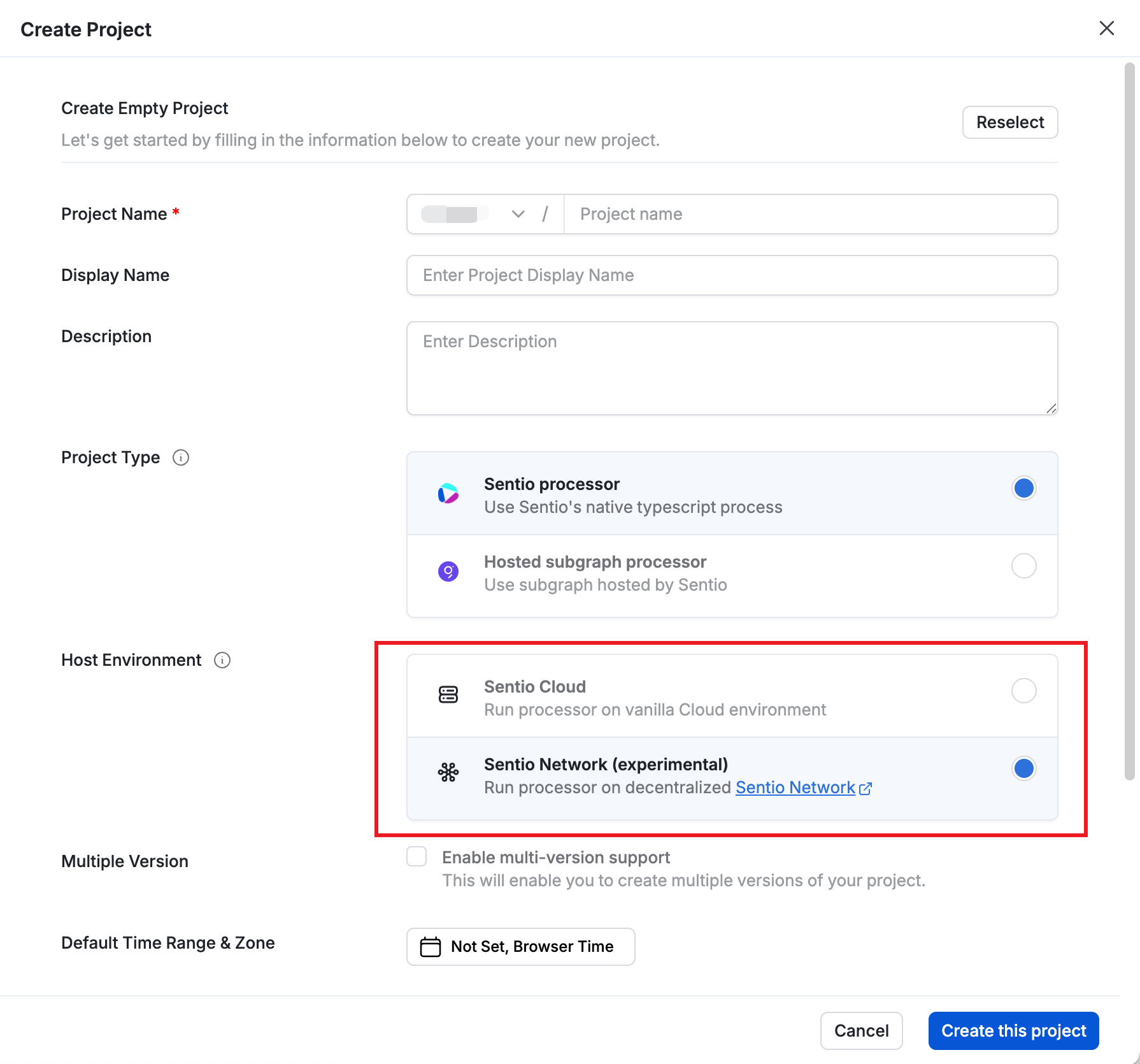
Note: The host environment can only be configured at project creation and cannot be modified afterward.

Follow the Guide in UI to create and upload your processor.
Access Directly
Direct access gives you more control but loses platform benefits like version control and UI (it's on our roadmap). The flow is:
- Fund your Billing balance.
- (Recommended) Add operator keys.
- Upload your processor bundle and start it on-chain.
- Connect a query client through the sidecar.
Step 1: Fund your Billing balance
Fees are pulled from balances in the Billing contract:
- Indexing fees are charged to the processor owner.
- Query fees are charged to the query initiator.
You can use Network Hub to deposit $ST tokens.
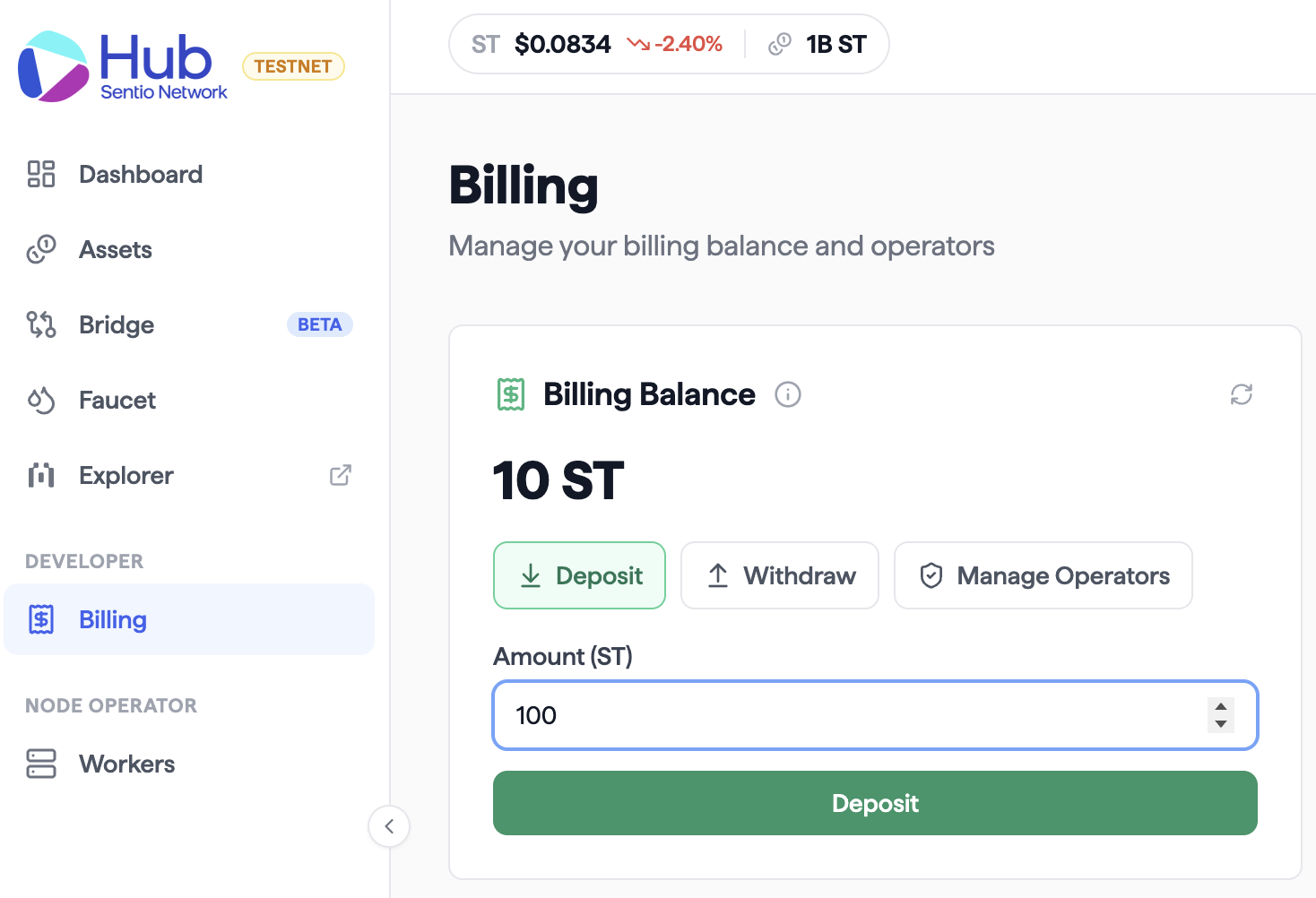
Step 2: Add an operator (optional)
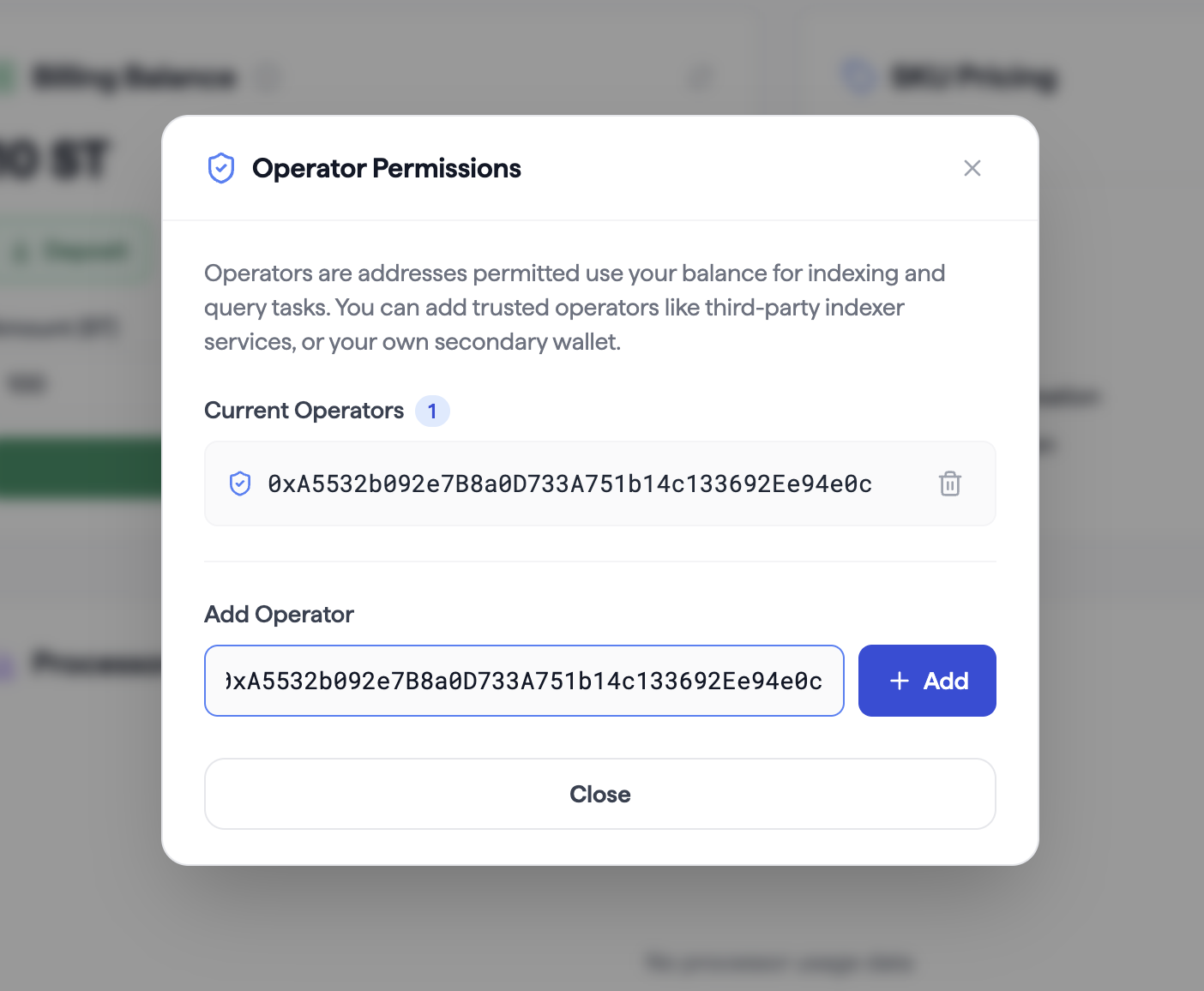
Adding another address as your operator gives it two powers on your behalf:
- It can manage your processors — create, start, and stop them under your ownership.
- Queries it signs can be billed to your Billing balance instead of its own.
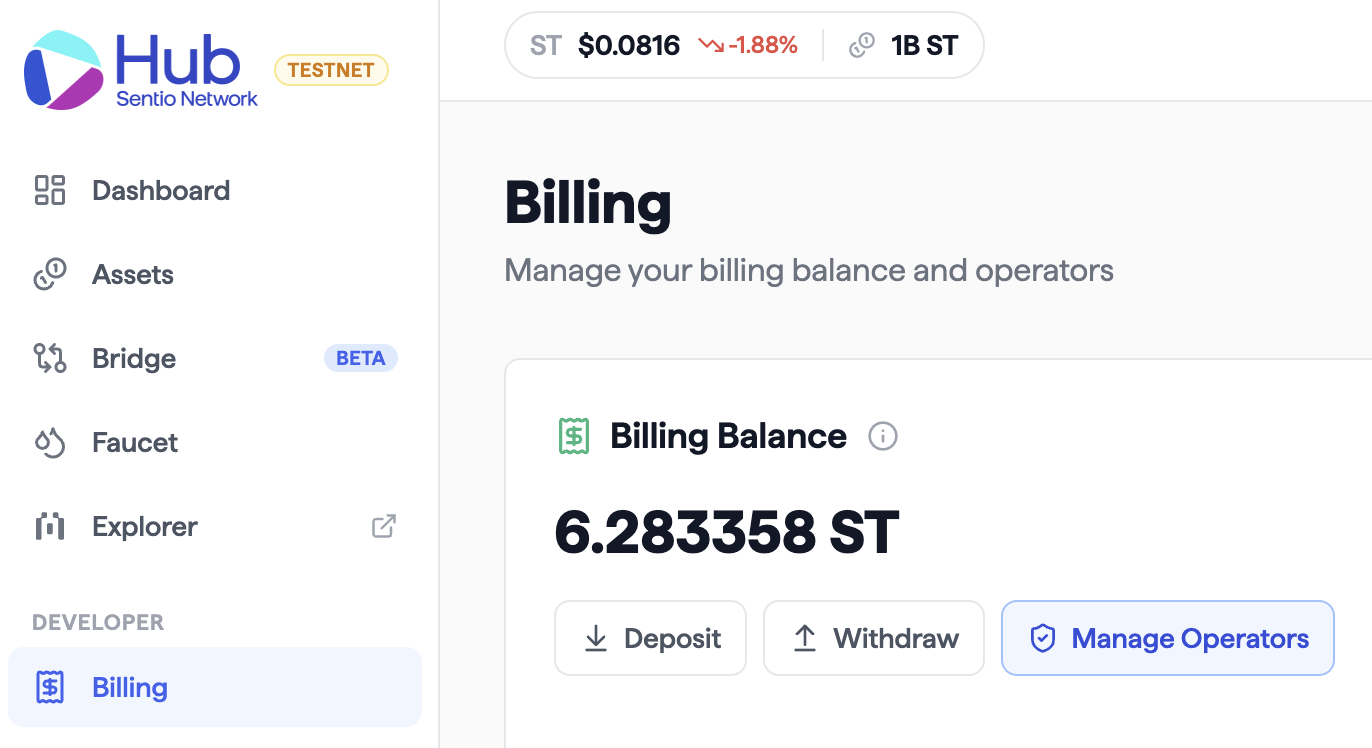
Use Manage Operator in Network Hub to add account of your control.
Step 3: Upload, create, and start the processor
Create an empty Sentio project locally or using your existed project.
npx @sentio/cli@latest create example-project
cd example-project
Then upload processor with your operator private key (recommended) or private key
PRIVATE_KEY=<OPERATOR_PRIVATE_KEY> \
yarn sentio upload --sentio-network testnet --required-chain-id 1 --no-platform --owner=<OWNER_PUBLIC_KEY>

# Limitation: you need also transfer a small amount of native $ST to your operator address (for gas)
# though this limitation will be lift soon, we'll only require ST be deposited into Billing contract
PRIVATE_KEY=<OWNER_PRIVATE_KEY> \
  yarn sentio upload --sentio-network testnet --required-chain-id 1 --no-platform
Pass one --required-chain-id per chain your processor reads. The CLI prints the resolved contract addresses, your wallet's ST + Billing balance, asks for confirmation, then runs:
tsuppackagessrc/processor.tsintodist/lib.js.- The bundle is pinned to IPFS via
https://api.sentio.xyz/v1/ipfs/add, returning a CID. ProcessorRegistry.createProcessoris signed and broadcast.Controller.startProcessoris signed and broadcast —Controllerthen allocates the processor to an eligible indexer.
On success the CLI prints the processor ID, IPFS CID, and the two on-chain tx hashes:
=== Upload Complete ===
         Processor ID: <user>_<project-name>
         IPFS CID: Qm…
         Network: testnet
         sha256: …
To stop a processor later, run:
# Stops AND deletes the processor (default)
PRIVATE_KEY=<OWNER_OR_OPERATOR_PRIVATE_KEY> \
  yarn sentio stop <PROCESSOR_ID> --sentio-network testnet

# Stop only — keep the processor on-chain so it can be started again
PRIVATE_KEY=<OWNER_OR_OPERATOR_PRIVATE_KEY> \
  yarn sentio stop <PROCESSOR_ID> --sentio-network testnet --no-delete
Only the owner, an operator of the owner, or an explicit processor admin can start or stop a processor. For the full processor lifecycle, see Compute Network.
Step 4: Connect a query client
The Storage Network speaks the native ClickHouse protocol. Queries must be signed by an Ethereum key whose Billing balance covers the fee, so you run a local client that signs queries with your key on the way out:
Download storage-network-daemon or use docker.
Start the daemon with:
# use binary
housegate --agent --state=https://testnet-storage-gateway.sentio.xyz --listen=:9001 --agent-key=$OPERATOR_PRIVATE_KEY --agent-owner=$OWNER_ADDRESS

# use docker
docker run -it -p 9001:9001 ghcr.io/housegate/housegate:latest --agent --state=https://testnet-storage-gateway.sentio.xyz --listen=:9001 --agent-key=$OPERATOR_PRIVATE_KEY --agent-owner=$OWNER_ADDRESS
# use binary
housegate --agent --state=https://testnet-storage-gateway.sentio.xyz --listen=:9001 --agent-key=$OWNER_PRIVATE_KEY
# use docker
docker run -it -p 9001:9001 ghcr.io/housegate/housegate:latest --agent --state=https://testnet-storage-gateway.sentio.xyz --listen=:9001 --agent-key=$OWNER_PRIVATE_KEYTo avoid using private key in command line, see Step 2 to add an operator and then use operator's private key.
Then start clickhouse-client to connect to the daemon — no --user/--password needed:
clickhouse client --port 9001
:) SHOW DATABASES;
:) USE fv2CWEeV_0;
:) SHOW TABLES;
:) SELECT * FROM entity_AccountSnapshot LIMIT 1;
You can also use any client library to connect to the daemon.
For the database permission model and how to share read access, see Storage Network.
Monitor processors
Processor status could be view and managed at Network Hub.
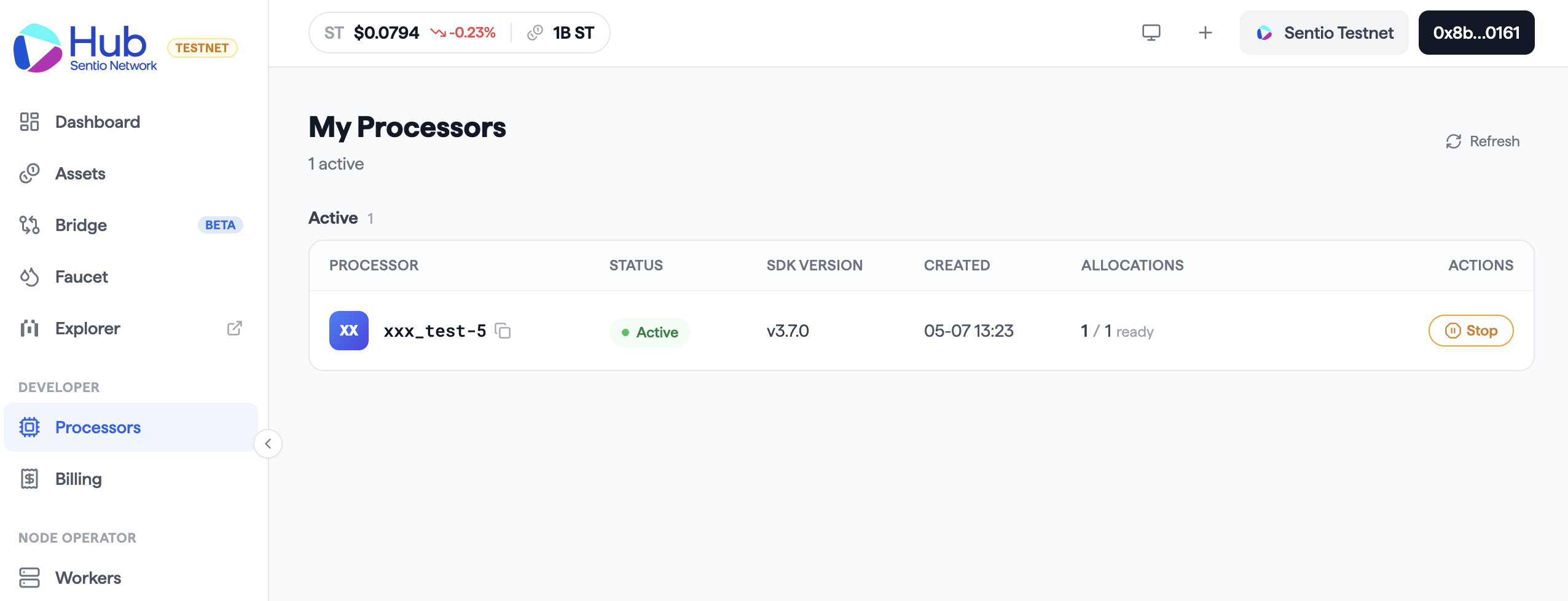
Each indexer node exposes a small JSON-RPC server on its compute-node RPC port (advertised via IndexerRegistry) for inspecting processor execution. Hit any node — if the processor isn't local to that node, the request is forwarded to whichever indexer hosts it. Method semantics are documented in Compute Network.
INDEXER_HOST=<individual indexer host>:<compute-node-rpc-port>   # port advertised via IndexerRegistry
# or using gateway which is compute RPC only endpoint
# INDEXER_HOST=https://testnet-compute-gateway.sentio.xyz

# Node identity + sync state
curl -s $INDEXER_HOST -H 'Content-Type: application/json' \
  --data '{"jsonrpc":"2.0","method":"sentio_nodeStatus","params":[],"id":1}'

PROCESSOR_ID=<your processor ID>

# Processor progress
curl -s $INDEXER_HOST -H 'Content-Type: application/json' \
  --data '{"jsonrpc":"2.0","method":"sentio_processorStatus",
           "params":[{"id":"$PROCESSOR_ID"}],"id":1}'

# Recent logs (last 10 entries)
curl -s $INDEXER_HOST -H 'Content-Type: application/json' \
  --data '{"jsonrpc":"2.0","method":"sentio_processorLogs",
           "params":[{"processor_id":"$PROCESSOR_ID","limit":10}],"id":1}'
Updated 3 months ago